Terrain materials
Atlas material fields choose the Roblox material written at every terrain voxel.
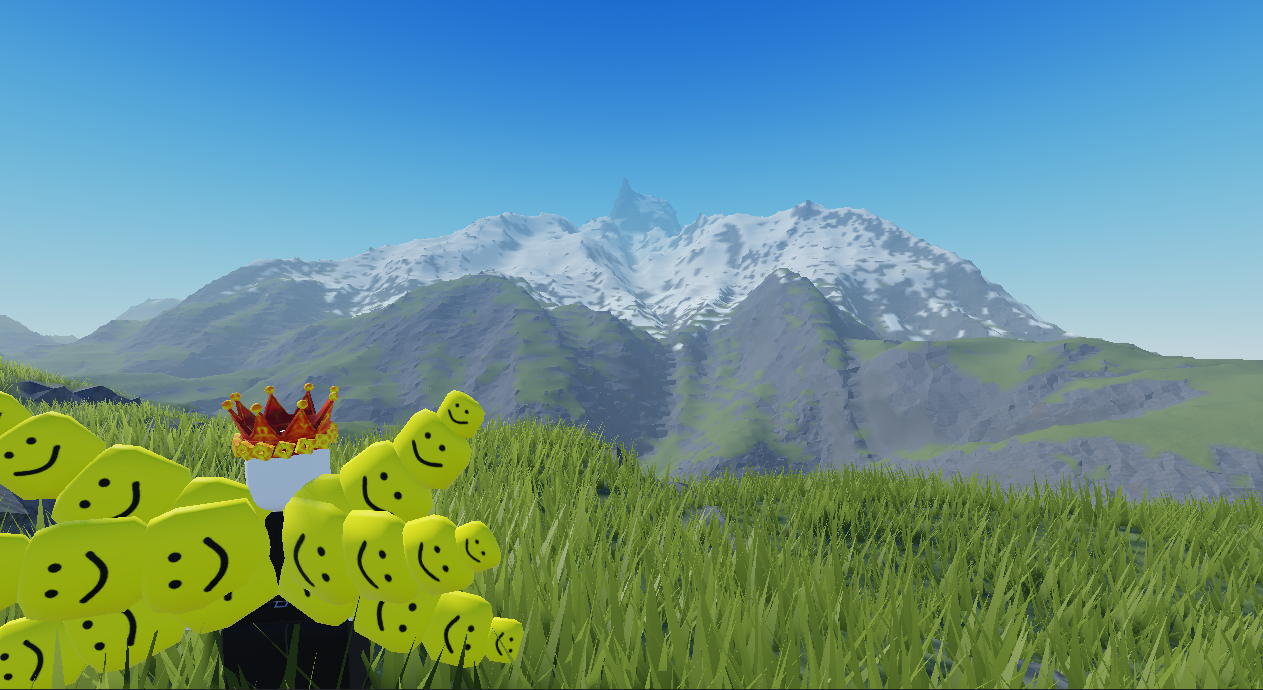
- Terrain Material fills the map with one material.
- Height Material assigns bands by elevation.
- Slope Material assigns bands by steepness.
- Texturize creates a complete profile from height, slope, curvature, drainage, and deposits.
- Material Mixer layers custom range rules.
- Material Scatter adds clumped patches to an existing material map.
For a quick result, connect the same final heightfield to Texturize's Height input and connect Texturize Out to Build Map Material. Add Slope, Flow Map, Curvature, or Deposits to their matching ports when you want more control.
Material boundaries are discrete. Dither creates a less mechanical transition by interleaving neighboring materials. Break-up or noise controls disturb perfectly level band edges. Always inspect Material preview before building to find uncovered or surprising regions.
A dependable first material graph
- Branch the final terrain height into Texturize · Height.
- Connect Texturize · Out to Build Map · Material.
- Match Texturize's water assumptions to the Sea Level used by Build Map.
- Start with a profile, then tune Shore Width, Upland Line, Snow Line, and the slope angles in that order.
- Inspect the Material preview before adjusting break-up and dither. Those controls improve transitions but should not compensate for incorrect elevation or slope thresholds.
Use Height Material for explicit elevation bands or Material Mixer when each layer needs its own terrain driver.