Paint masks
A Paint Mask node produces a reusable 0–1 field stored with the active project.
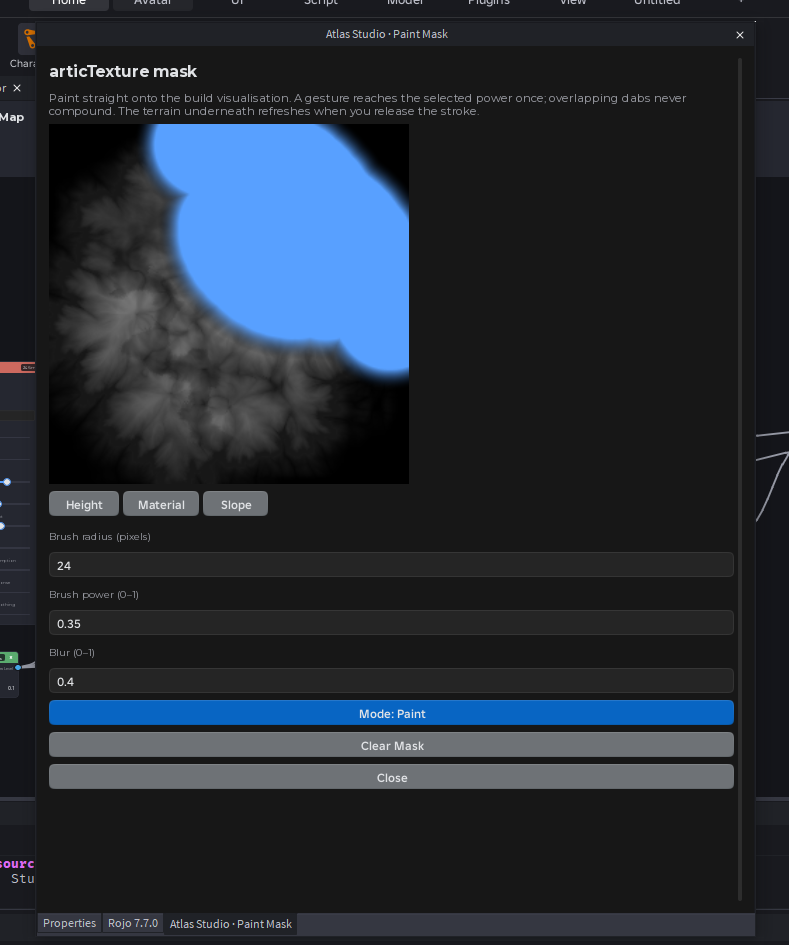
- Add Paint Mask from Utility.
- Give it a unique Mask ID and a descriptive Name.
- Select Edit Mask on the node.
- Choose Height, Material, or Slope as the visualization beneath the overlay.
- Set brush radius, power, blur, and Paint or Erase mode.
- Paint directly over the feature you want to affect, then connect Mask to Blend or another mask-driven node.
Power is the target value reached by a gesture. Overlapping dabs in one continuous stroke do not compound and turn a soft stroke solid. The terrain visualization refreshes after the stroke is released.
Clear Mask is undoable but removes all painted values from that mask. Mask radius is measured in preview pixels, so changing preview resolution changes the world area covered by the same numeric radius.
Duplicate maps receive independent mask buffers. Renaming a visible mask does not change its identity; changing Mask ID points the node at a different stored mask.